A Guide to Tesla’s Voice Command Features and How to Use Them
Enhancing Your Driving Experience
Navigating the innovative features of a Tesla can be an exciting experience, and voice commands play a significant role in enhancing that journey. As a Tesla owner, I find voice recognition technology to be an intuitive way to interact with my vehicle. The built-in system allows me to perform a multitude of tasks without taking my eyes off the road or my hands off the wheel. This functionality is not only convenient but also contributes to safer driving practices.
I am often impressed by the responsiveness and range of actions that can be controlled with simple voice commands in my Tesla. From adjusting the cabin temperature to sending a text message or even opening the trunk, the voice command feature is designed to understand and execute a variety of requests. Tesla’s continued software updates refine this experience further, introducing new commands and improving voice recognition capabilities.
With the tap of a button or a simple spoken command, I can communicate with my Tesla, whether it’s to navigate to a destination or control media playback. This hands-free convenience is emblematic of Tesla’s commitment to innovation and user-friendly technology. As such, knowing how to effectively utilize voice commands can significantly enhance the driving experience and the smart features of the vehicle.
Understanding Tesla’s Voice Command System
Tesla’s Voice Command system harnesses advanced voice recognition and natural language processing technologies to enable drivers to control various functions of their Tesla vehicle. It provides an intuitive and hands-free way to operate the car, leveraging voice commands for enhanced safety and convenience.
Overview of Voice Recognition Technology
The Tesla vehicles integrate sophisticated voice recognition technology that is capable of interpreting spoken instructions from the driver. My analysis of this system suggests that it operates by converting the audio signal of the driver’s voice into text, which is then used to execute the corresponding action within the car’s system.
Natural Language Processor and Command Interpretation
When I give a voice command, the natural language processor (NLP) in my Tesla works to extract meaning from my words. This NLP technology is designed to understand and interpret a wide range of commands, even when they’re phrased in different ways. It allows for a user-friendly interaction, as there’s no need for me to remember specific command phrases.
Activating Voice Commands via the Voice Button
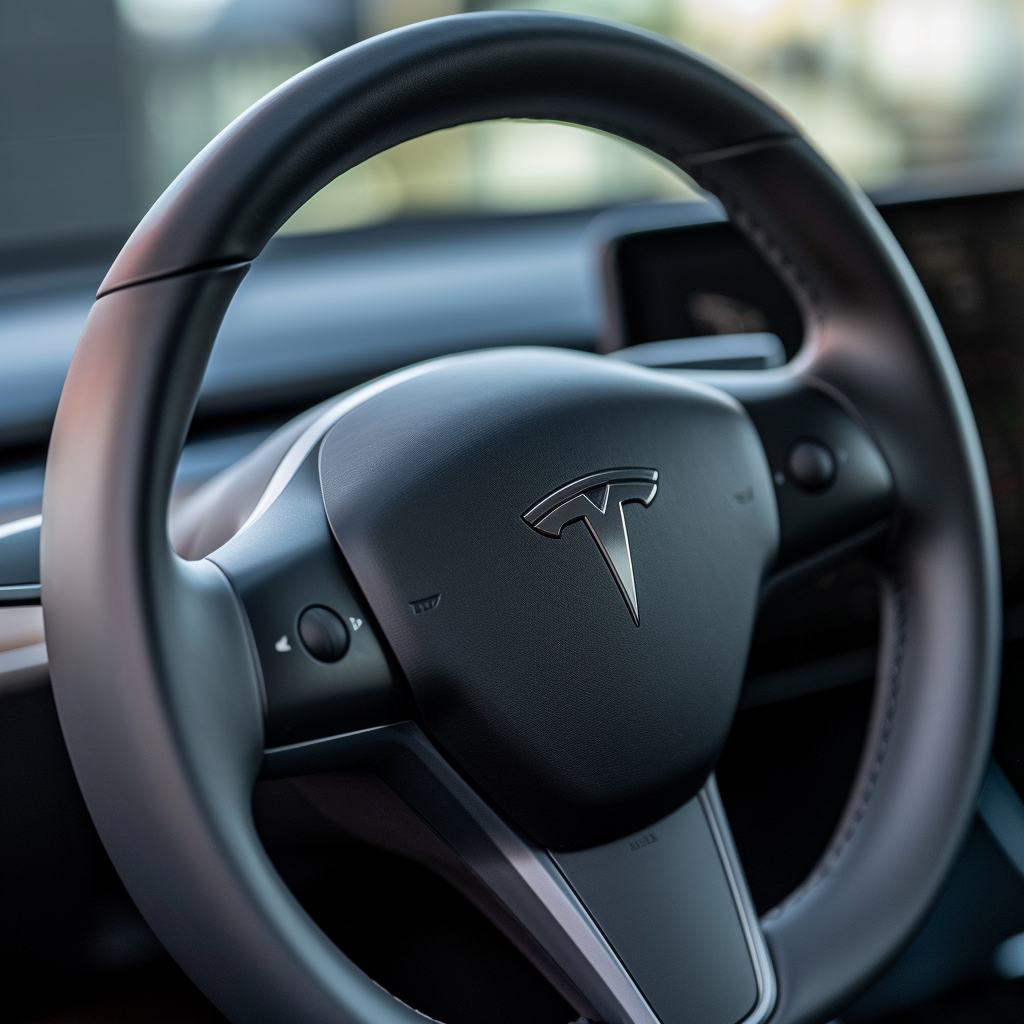
To initiate a voice command, I can tap the voice button conveniently located on the steering wheel or use the microphone button on the touchscreen. For Model S and Model X, the button is on the upper right side of the steering wheel, while Model 3 and Model Y allow pressing the right scroll button for the same function. Once activated, I simply speak the command after the audible tone.
Safety and Privacy Features
Tesla is committed to both my safety and privacy. Voice commands help me to keep my eyes on the road and hands on the wheel, minimizing distractions. Tesla also implements security measures to protect the data and privacy of my voice inputs. I can utilize voice commands with peace of mind, knowing that they’re designed with these aspects as a priority.
Essential Voice Commands for Driving
When I’m behind the wheel of my Tesla, the voice command system significantly enhances my driving experience. Accessibility to crucial functions without taking my eyes off the road is paramount for safety and convenience.
Navigation Commands
To initiate navigation, I find it easiest to give direct commands such as “Navigate to [address or location]”. If I need alternative routes, I can request “Show me the fastest route home”. Traffic is often unpredictable, so asking “Is there traffic on my route?” helps me adjust my journey in real-time. Tesla’s integration with Google Maps ensures the responses are both accurate and updated.
Phone Calls and Messaging
While driving, it’s essential to stay connected without distraction. For phone interactions, I use commands such as “Call [contact name]” or “Text [contact name]”, followed by the message I want to send. I ensure my focus remains on the road while still communicating effectively.
Media Control for Music and Audio
When it comes to entertainment, I like to keep it simple. Saying “Play [song name]” or “Play music by [artist name]” allows me to enjoy my favorite tunes from streaming services. When I feel like listening to the news or a podcast, I say “Play [podcast/news station name]”. It allows seamless control over what I’m listening to without ever having to lift a finger.
Internet and Connectivity Functions
For broader connectivity options, I can use voice commands to access certain internet features. Telling my Tesla “Google [search topic]”, brings up search results on the central screen. When I want to wind down at a supercharger, saying “Open Netflix” sets me up for a quick movie while I wait. To browse the web, a straightforward command like “Open browser” definitely does the trick.
Climate and Comfort Controls
I find that Tesla’s advanced voice command features elevate the comfort and climate management inside the car to a new level of convenience. By using precise vocal instructions, drivers and passengers can effortlessly adapt the vehicle’s interior environment to suit their preferences without the need to physically interact with the controls.
Adjusting Temperature and Air Conditioning
Managing the Temperature: Using voice commands, I can simply say, “Set the temperature to 70 degrees” to adjust the car’s cabin to a comfortable level. It’s possible to direct the system to make it cooler or warmer with similar ease, enhancing my driving experience without diverting attention from the road.
- To increase or decrease the fan speed or to turn on the air conditioning, I can use commands like, “Increase fan speed” or “Turn on the air conditioning”. The system intelligently understands and promptly responds to my requests.
Directing Air Flow: Directing air flow is as straightforward as stating, “Direct airflow to my face”, ensuring that I can quickly redirect the ventilation to target specific areas within the vehicle.
Control Window and Sunroof/Trunk
Opening and Closing Windows: Tesla’s voice control system also allows me to operate the windows without manual input. I just need to command “Open driver’s window halfway” or “Close all windows” to get the exact window configuration I prefer.
- For the sunroof or trunk, specific commands like, “Open sunroof”, or “Open the trunk” afford me the convenience of adjusting these features without raising a finger.
Activating Cabin Modes (Dog, Camp, Sentry)
Dog and Camp Modes: I ensure the safety and comfort of my pets when I’m away from the car by instructing, “Turn on Dog Mode”, which keeps the climate controls active. When camping, the “Turn on Camp Mode” voice command maintains airflow and lighting, providing a cozy atmosphere overnight.
- Tesla vehicles like the Model 3 and Model Y support these commands, which are crucial for the well-being and comfort of the occupants – whether two-legged or four-legged.
Sentry Mode: To enhance security while I’m away from the vehicle, activating “Turn on Sentry Mode” through voice command arms the vehicle’s surveillance system. This proactive feature uses the car’s external cameras to monitor the surroundings, giving me peace of mind.
The voice-controlled climate and comfort features in Tesla vehicles are both practical and innovative, allowing me to tailor my driving experience with minimal effort and staying focused on the journey ahead.
Customizing Vehicle Settings
In Tesla vehicles, I have the ability to tailor a range of settings to fit my preferences, from how I interact with the touchscreen display to how the vehicle responds to my commands. Catering to both convenience and accessibility, these customizable options ensure that my driving experience is as comfortable and personalized as possible.
Changing Driver Preferences
I can easily adjust the steering wheel height and reach from the touchscreen under the ‘Controls’ menu, selecting ‘Quick Controls’, and then ‘Steering Wheel’. Additionally, autopilot settings are adjustable to my liking; I decide the following distance and can toggle features like autosteer and summon from the same ‘Controls’ menu.
Vehicle Display Customization
The display settings allow me to change the appearance and functionality of the car’s main screen and instrument panel. I find options for customizing things like:
- Time format (12-hour or 24-hour)
- Energy graph: I can choose between a projected range based on energy or distance.
- Navigation settings: Altering route preferences and maps display is straightforward in the ‘Navigation’ tab.
Service and Accessibility Adjustments
For servicing and accessibility, I have specific settings such as:
- Service settings: These can be accessed to prepare for maintenance, like toggling towing mode or wiper service mode.
- Owner’s manual: It’s available digitally within the vehicle’s touch screen, ensuring that I can source information on-the-fly if necessary.
To enhance the accessibility, I adjust features like voice command volume and touch screen sensitivity under the ‘Accessibility’ option within the ‘Controls’ menu.
Troubleshooting and Support
When I encounter issues with my Tesla’s voice command features, several support mechanisms are readily available. I can report bugs, access in-depth guides, or contact support for personalized assistance.
Using the Bug Report Feature
If I notice a software glitch or any inconsistency with voice commands, I can quickly use the Bug Report feature in my Tesla. I voice the command, “Report a bug,” followed by a brief description of the issue. This information is then sent to Tesla for analysis, and improvements may be included in future release notes.
Accessing Owner’s Manual and Tutorials
For detailed instructions and troubleshooting, the Owner’s Manual provides comprehensive support. I can access it directly from my Tesla’s infotainment system or through the Tesla Support website. Additionally, interactive tutorials are available that include phrases like “Show me how to…” which help me familiarize myself with voice command features.
Contacting Support and Feedback
When immediate support is needed, I can contact Tesla’s customer service. Feedback is also highly valued, and I can share my experiences or suggestions through the car’s infotainment system. This helps Tesla enhance the user experience and address any issues that drivers may face.
Entertainment and Non-Driving Voice Commands
Tesla’s voice command system allows me to effortlessly interact with its state-of-the-art infotainment system. I can control a variety of entertainment features without ever needing to take my hands off the wheel or my eyes off the road.
Engaging with Tesla Infotainment System
When I’m in my Tesla, the infotainment system is the gateway to numerous functionalities. I can use voice commands to navigate through various apps and settings with ease. By prompting the system with statements like “Open the charging screen” or “Show me the rear camera,” I’m able to access different components of the vehicle’s interface. For a more specific task, commanding “Open Spotify” will launch my music streaming service directly. It’s that straightforward.
Using Entertainment Apps and Features
I like to personalize my driving experience by using Tesla’s voice commands to control entertainment apps. For instance, YouTube can be accessed simply by saying “Play videos on YouTube,” making it convenient to watch content while parked. With a Bluetooth-connected phone, I’m able to dictate commands such as “Call Mom” or “Text John” and the car will facilitate my communication hands-free. Furthermore, the system allows me to easily queue songs or podcasts through streaming services just by stating the title or content I’m interested in.
Voice control extends beyond these examples, empowering me to adjust settings within the satellite mode for navigation, or switch the audio source from my phone to Tesla’s built-in options. The adaptability and intuitive nature of Tesla’s voice command feature make it an integral part of the driving experience, keeping me engaged and entertained responsibly.
Vehicle Care and Management
In my Tesla, I find that the ease of maintaining and managing my vehicle is significantly enhanced by the integration of intuitive voice commands. I can perform routine checks and upkeep, keep an eye on charging status, and adjust settings for optimal performance without navigating through menus.
Voice Commands for Cleaning and Maintenance
Clean Trunk: I simply say, “Open the trunk,” and it unlocks for me to ensure the trunk is clean and tidy. When I need to clean the windows or the rest of the vehicle, I can ask, “Open all windows,” to get fresh air flowing through every part of the car.
Maintenance Checks: I can also use voice commands like “Check tire pressure” or “Show me the maintenance schedule” to keep up with necessary vehicle upkeep.
Accessing the Charging Screen and Energy Graph
Charging Screen: To view my charging status, I tell my Tesla, “Open charging screen,” and I immediately see the current battery level, estimated range, and access options to adjust the charging limits.
Superchargers: If I’m on the road and my battery needs recharging, stating, “Navigate to the nearest Supercharger” directs me to the closest fast-charging station, helping me minimize downtime and stay on the go.
Adjusting and Reviewing Vehicle Performance
Performance: To make adjustments to my car’s performance settings, a command such as “Adjust performance settings” brings up the options I need. This allows me to tailor my driving experience, whether I’m looking for energy savings or a bit more responsiveness from the accelerator.
Energy Graph: When I’m curious about my Tesla’s energy usage, I simply say, “Show me the energy graph,” and a detailed graph appears, depicting energy consumption over time, which helps me understand my driving patterns and how they affect my battery’s charge.
Advanced Features and Custom Commands
Tesla’s integration of advanced voice command features and the ability to customize commands greatly enhance the driving experience. These functionalities offer convenience and a touch of personalization for Model X and Model Y owners. Let’s explore these innovative options.
Utilizing Easter Eggs and Hidden Features
Tesla vehicles are renowned for their Easter eggs – secret, fun features that can be activated through voice commands. For example, saying “Open Butthole” will open the charging port on most models, and articulating “Close Butthole” will close it. Owners can also enjoy the “The View from Space” by commanding their Tesla to Display the view from space, transforming the infotainment screen into a celestial experience. Another hidden feature includes setting the mood in your car; you can command, “Set fireplace to automatic,” and watch as your display simulates a cozy fireplace, complete with heat flow to match the visual.
- Command: “Open Butthole” – opens the charging port. (Yes, we are serious)
- Command: “Close Butthole” – closes the charging port.
- Command: “Display the view from space” – changes the screen to a space view.
- Command: “Set fireplace to automatic” – creates a virtual fireplace on your screen.
These hidden features add an element of surprise and delight that is unique to Tesla, and they are continually updated with each new vehicle version.
Customizing Voice Commands and Shortcuts
In addition to the predetermined commands, Tesla offers the possibility to customize voice commands for quick access to frequently used functions. While direct customization of voice commands is not standard, workarounds through driver profiles and third-party apps are available. For instance, if you frequently have a need to hide certain features from the main screen for better focus or clarity, you can create a voice command shortcut that adjusts your display settings with a simple spoken phrase.
Custom command creation via third-party applications might include:
While Tesla does not officially support direct custom voice command creation, these apps enable drivers to enhance functionality and tailor their interaction with their Tesla’s system for a more personalized driving experience.
Conclusion
In mastering my Tesla’s voice command system, I’ve discovered it’s a feature that significantly enhances the driving experience. By vocalizing simple commands, I can control a wide range of functions within my Tesla—from adjusting temperature to changing the music or placing a call.
Key Takeaways:
- Voice commands in Teslas offer a safer alternative to manually interacting with the touchscreen.
- From personal use, I’ve learned commands must be spoken clearly after tapping the microphone button or pressing the right scroll button on the steering wheel.
- The wide availability of commands can perform tasks such as controlling climate or navigating to destinations.
Tips for Mastery:
- Practice common commands to familiarize yourself with the system’s responsiveness.
- Use concise and direct language for best recognition.
- If unfamiliar with the available commands, reviewing a comprehensive list of Tesla voice commands can be exceedingly helpful.
And remember, while the range of voice commands is broad, they do not include driving-related tasks for safety reasons. As I continue to use this innovative technology, the convenience and functionality of Tesla’s voice commands remain an awesome feature that I find indispensable during my drives.